

Development Environment#
Linux Intro  #
#
What you’ll learn
Linux intro and motivation
Connecting to Docker/Nova
How to access the command line from your own computer
How to perform some basic file manipulation
A few other useful commands
How to chain commands together to make more powerful tools
What is Linux?#
Linux is an operating system, like Windows 10 and macOS, used to power everything from day-to-day computing needs all the way to the largest companies and most widely used software in the world. Linux does many of the same things that Windows and macOS do, including running programs and software, handling major business applications, and supporting the latest games (of course).
Linux for business has risen in popularity over the last decades, and enterprises use it frequently to support cloud infrastructure and software-as-a-service (SaaS) applications. While it commands a fleetingly small percentage of the desktop market, Linux dominates cloud and production systems.
 Linux uniquely is open source, meaning that anyone can change and modify the core Linux code for their own purposes, as long as they respect the license.
There are variety of distributions, include common names like Ubuntu, CentOS, or Red Hat Enterprise Linux.
Linux uniquely is open source, meaning that anyone can change and modify the core Linux code for their own purposes, as long as they respect the license.
There are variety of distributions, include common names like Ubuntu, CentOS, or Red Hat Enterprise Linux.
The kernel is the brains of the operation in Linux, handling all of the core operations across your operating system, including communication with other services and process management.
Administrators use shells and commands to manage Linux. Commands tell Linux what to do, and can be used for everything from starting and stopping programs and scripts to managing users. Shells are programs that take commands and run them, with shells like bash or tcsh commonly used to manage Linux systems.
What Is the Shell?#
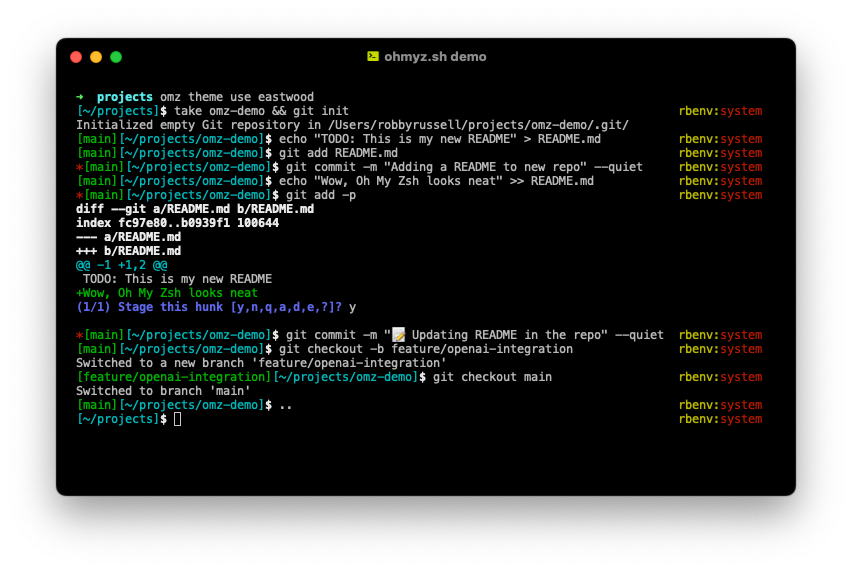
When we speak of the command line, we are really referring to the shell. The shell is a program that takes keyboard commands and passes them to the operating system to carry out. Almost all Linux distributions supply a shell program from the GNU Project called bash. The name “bash” is an acronym for “Bourne Again SHell”, a reference to the fact bash is an enhanced replacement for sh, the original Unix shell program written by Steve Bourne.
Understanding the File System Tree#
Like Windows, a Unix-like operating system such as Linux organizes its files in what is called a hierarchical directory structure. This means they are organized in a tree-like pattern of directories (sometimes called folders in other systems), which may contain files and other directories. The first directory in the file system is called the root directory.
File Hierarchy Standard (FHS)#
Path |
Content |
|---|---|
|
The root directory. Where everything begins |
|
Contains binaries (programs) that must be present for the system to boot and run |
|
Contains the Linux kernel, initial RAM disk image, and the boot loader |
|
This is a special directory that contains device nodes |
|
contains all of the system-wide configuration files |
|
Binaries (System/root) |
|
3rd party software |
|
Pseudo file system |
|
Pseudo file system |
|
Mountpoint for internal drives |
|
Mountpoint for external drives.(USB) |
|
User homes |
|
PID files of running. processes |
|
contains log files, records of various system activity |
File System Commands#
Command |
Options |
Description |
|---|---|---|
|
|
Go to last directory |
|
Go to home directory |
|
|
Print current directory |
|
|
|
List directory contents in detail |
|
Show hidden files |
|
|
|
Create directory with parents if needed |
|
|
Copy directories recursively |
|
|
Force remove directory and contents |
|
Move or rename files/directories |
|
|
|
Copy files or directories via SSH |
|
Connect to remote server |
|
|
|
Case-insensitive name search |
|
Modified n days ago |
|
|
By file size (e.g., |
Example Session#
Print name of current working directory
pwd
Change directory to root
cd /
pwd
List directory contents
ls
long list
ls -l
show hidden files
ls -la
Go back to Home dir
cd ~
pwd
Relative and absolute paths
Relative path depends on your current working directory
cd ~
pwd
cd etc
pwd
Absolute path, No matter what your current working directory is, it starts from root
cd /
pwd
cd etc
pwd
There’s one other handy shortcut which works as an absolute path. As you’ve seen, using “/” at the start of your path means “starting from the root directory”. Using the tilde character (”~”) at the start of your path similarly means “starting from my home directory”.
cd ~
pwd
cd ~/Music
pwd
Creating folders and files#
In this section we’re going to create some real files to work with. To avoid accidentally trampling over any of your real files, we’re going to start by creating a new directory, well away from your home folder, which will serve as a safer environment in which to experiment:
mkdir ~/tutorial
cd ~/tutorial
let’s create a few subdirectories
mkdir dir1 dir2 dir3
ls -l
making nested dirs
mkdir dir4/dir5/dir6
mkdir -p dir4/dir5/dir6
ls -l
This time you’ll see that only dir4 has been added to the list, because dir5 is inside it, and dir6 is inside that
cd dir4
ls -l
cd dir5
ls -l
cd ../..
Creating files#
Suppose we wanted to capture the output of that command as a text file that we can look at or manipulate further. All we need to do is to add the greater-than character (”>”) to the end of our command line, followed by the name of the file to write to:
ls > output.txt
Print file to screen
cat output.txt
Echo prints its arguments back out again (hence the name)
echo "This is a test"
Combine it with a redirect, and you’ve got a way to easily create small test files
echo "This is a test" > test_1.txt
echo "This is a second test" > test_2.txt
echo "This is a third test" > test_3.txt
ls -l
Append to file
cat t* >> combined.txt
cat combined.txt
echo "I've appended a line!" >> combined.txt
cat combined.txt
Viewing File Contents with less
The less command is a program to view text files. Throughout our Linux system, there are many files that contain human-readable text. The less program provides a convenient way to examine them.
man gcc > gcc.txt
cat gcc.txt
less gcc.txt
/ # search
n # move to next occurence
q # quit
Moving and manipulating files#
Move file to different location
mv combined.txt dir1
ls dir1
Change file name
cd dir1
mv combined.txt combined_new.txt
ls -l
cp combined_new.txt ../dir2
ls ../dir2
cat ../dir2/combined_new.txt
Copy from local to remote
scp <local_file> <username>@nova.cs.tau.ac.il:/home...
ls
Alternative graphical tools for server connection and file transfer, check this
Pipe |#
How many lines are there in your combined_new.txt file? The wc (word count) command can tell us that, using the -l switch to tell it we only want the line count (it can also do character counts and, as the name suggests, word counts):
wc -l combined_new.txt
Count how many items in dir
ls -l ~ | wc -l
Other#
Help of command:
man <command>
man gcc
History of command:
history
SIGINT
Careful when using CTRL + C. This is called SIGINT, an interrupt signal will be sent to the OS telling it to interrupt the program and stop it.
SIGKILL If you want a program to stop and stop now.
//vim kill.c
#include <unistd.h>
#include <stdio.h>

int main(int argc, char** argv)
{
  while(1)
  {
    printf("Name: %s, PID: %d\n", argv[0], getpid());
    sleep(4);
  }
}
gcc -o kill kill.c
run interactively
./kill
CTRL+C
run in background
./kill &
ps -e | grep kill
kill -9 <pid>
Cleaning up
cd ~
rm -r ~/tutorial
ls ~ | grep tutorial
Be Careful with rm!
Unix-like operating systems such as Linux do not have an undelete command.
Once you delete something with rm, it’s gone. Linux assumes you’re smart and
you know what you’re doing.
Docker 🐳#
Evolution, Motivation, and Implementation Guide
Part 1: Evolution and Motivation#
The Problem: Traditional Deployment (1990s-2000s)#
Traditional Server Setup:
+------------------------+
|      Application       |
+------------------------+
|    Operating System    |
+------------------------+
|    Physical Server     |
+------------------------+

Problems:
✗ Slow deployment
✗ Resource waste
✗ High costs
✗ "Works on my machine"
✗ Difficult scaling
First Solution: Virtual Machines (2000s-2010s)#
Virtual Machine Architecture:
+----------------------------------+
|  VM1         VM2         VM3     |
| +------+   +------+   +------+   |
| | App1 |   | App2 |   | App3 |   |
| +------+   +------+   +------+   |
| |  OS  |   |  OS  |   |  OS  |   |
| +------+   +------+   +------+   |
|          Hypervisor              |
+----------------------------------+
|        Physical Server           |
+----------------------------------+

Benefits:
✓ Better resource utilization
✓ Application isolation
✓ Multiple OS support

Drawbacks:
✗ Heavy resource overhead
✗ Slow startup
✗ Large storage requirements
✗ License costs per OS
Modern Solution: Docker (2013-Present)#
Docker Architecture:
+----------------------------------+
| Container1  Container2  Container3|
| +------+   +------+   +------+   |
| | App1 |   | App2 |   | App3 |   |
| +------+   +------+   +------+   |
|         Docker Engine            |
+----------------------------------+
|         Single OS Kernel         |
+----------------------------------+
|        Physical Server           |
+----------------------------------+

Benefits:
✓ Lightweight
✓ Fast startup
✓ Consistent environment
✓ Better resource usage
✓ Easy scaling
✓ Version control for infrastructure
Why Docker Became Popular#
1. Development Challenges Solved#
Challenge |
Traditional Solution |
Docker Solution |
|---|---|---|
Environment Consistency |
Manual setup docs |
Dockerfile |
Dependency Conflicts |
Virtual environments |
Containers |
Deployment Issues |
Detailed deployment guides |
Container images |
Resource Utilization |
Dedicated servers |
Container orchestration |
2. Business Benefits#
ROI Improvements:
↑ Faster development
↑ Reduced infrastructure costs
↑ Quicker deployment
↑ Better scalability
↓ Environment issues
↓ Integration problems
3. Technical Advantages#
Feature |
Benefit |
|---|---|
Isolation |
Applications don’t interfere |
Portability |
Run anywhere Docker is installed |
Versioning |
Track changes in infrastructure |
Reuse |
Share and reuse containers |
Standardization |
Industry-standard format |

Installation Steps#
macOS Installation#
# Install Docker Desktop for Mac using Homebrew
brew update
brew install --cask docker

# Start Docker Desktop from Applications folder
# Or run the command:
open -a Docker
Windows Installation#
# Download Docker Desktop for Windows from:
# https://www.docker.com/products/docker-desktop/

# Follow the installation wizard
# Enable WSL 2 if prompted
Verify installation#
# Verify installation
docker --version
docker run hello-world
Test installation#
docker run hello-world
If successful, you’ll see a message indicating that your Docker installation is working correctly
Building Course Image#
Create a folder for the course in your PC
Download and save Dockerfile in course folder.
The file should be named exactly
Dockerfilewith no extension.
open the your cmd and go to the course folder
run:
docker build -t c-python:latest .
run:
docker run -d -p 2222:22 -v <course_path_on_host>:/home c-python:latest
Additional Resources#
Docker Curriculum - A comprehensive tutorial for beginners
Basic Docker Commands 🖥️#
Category |
Command |
Explanation |
|---|---|---|
Images |
|
Downloads an image from a registry |
|
Builds an image from a Dockerfile |
|
|
Uploads an image to a registry |
|
Containers |
|
Creates and starts a new container |
|
Starts an existing stopped container |
|
|
Stops and then starts a running container |
|
|
Stops a running container |
|
|
Removes a stopped container |
|
Management |
|
Lists running containers |
|
Displays logs of a container |
|
|
Runs a command in a running container |
Feel free to ask if you need any more modifications!
Env Setup#
To start writing our code quickly, we’ll use a tool for the course, VScode IDE. You may use whatever IDE you want. What’s IDE ? text editor with more tools (run, debug …)
Install Remote Development Extention
Add a new SSH configuration:
Host software-project
    HostName localhost
    User developer
    Port 2222
connect to Container using VScode remote host
go to left bottom corner
click ‘Connect Current Window to Host’

if asked, password is: developer
from VScode extentions, install C/C++ extention
install other helpful extensions as you prefer, for example: GitHub Copilot, jupyter …
find the compiler location by running:
which gccCreate a folder called ‘.vscode’
add the launch.json and tasks.json files to .vscode folder
run the below ‘Hello World’ program
create file hello.c
copy the below code to the file and save
run the file
#include <stdio.h>
int main() {
   printf("Hello, World!\n");
   return 0;
}
Nova (Optional)#
Nova is a Linux server available for all CS students, it allows you to run your programming assignments and store them. More Help!
Connect to Nova#
The connection is via SSH.
If you work from outside the University, connect to vpn
From your terminal, run:
ssh <username>@nova.cs.tau.ac.ilExamine Nova version and distribution:
cat /etc/os-release